
Trading View MetaTrader 5 Bridge Tutorial
In the video above we are demonstrating how to install our Trading View MetaTrader 5 Bridge.
The first step you need to take (if you wish so) is to create your own signals server.
When you buy our FX Kit you can download the full guide along with the files you need to install on your Plesk panel.
The 1st step is to buy a domain (or use one that you already have) and create a subdomain (ex webhook.mydomain.com).
Next step will be to install an SSL Certificate on this subdomain.
Then you have to set up a new database in your Plesk Panel and note down the username and password.
You must also create a 12 secret phrase.
Next step is to install the files on your subdomain files directory through your Plesk Panel.
You will then have to make some changes in some specific files (all described in detail in the DIY Guide you receive when you buy our FX Kit).
Once you have finalized the process of setting up your own server and webhook you are good to proceed with the next steps.
For each one of your Bots you will have to create a magic number (ex 111111). Create a unique magic number for each one of your Bots.
Also have available your secret phrase.
Now you can use the templates below to create your signal messages. Replace the trading pair, magic number and secret phrase accordingly. Also adjust the tp_percent, the sl_percent and the volume accordingly.
Open Long Message
{
“secret”: “YOURSECRETPHRASE”,
“id”: “{{time}}-YOURTRADINGPAIR-long-YOURMAGICNUMBER”,
“magic”: YOURMAGICNUMBER,
“symbol”: “YOURTRADINGPAIR”,
“action”: “enter_long”,
“order_type”: “market”,
“tp_percent”: 0.40,
“sl_percent”: 0.10,
“volume”: 1.5
}
Close Long Message
{
“secret”: “YOURSECRETPHRASE”,
“id”: “{{time}}-YOURTRADINGPAIR-closeL-YOURMAGICNUMBER”,
“magic”: YOURMAGICNUMBER,
“symbol”: “EURUSD”,
“action”: “close_long”,
“order_type”: “market”,
“volume”: 1.50
}
Open Short Message
{
“secret”: “YOURSECRETPHRASE”,
“id”: “{{time}}-YOURTRADINGPAIR-short-YOURMAGICNUMBER”,
“magic”: YOURMAGICNUMBER,
“symbol”: “YOURTRADINGPAIR”,
“action”: “enter_short”,
“order_type”: “market”,
“volume”: 1.50,
“tp_percent”: 0.40,
“sl_percent”: 0.10
}
Close Short Message
{
“secret”: “YOURSECRETPHRASE”,
“id”: “{{time}}-YOURTRADINGPAIR-closeS-YOURMAGICNUMBER”,
“magic”: YOURMAGICNUMBER,
“symbol”: “YOURTRADINGPAIR”,
“action”: “close_short”,
“order_type”: “market”,
“volume”: 1.50
}
Now that you have prepared the messages you will go to the Strategy Dashboard.
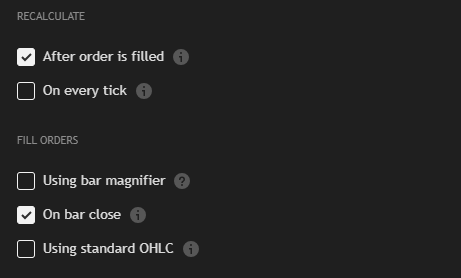
Go to properties and click only After order is filled and On bar close.
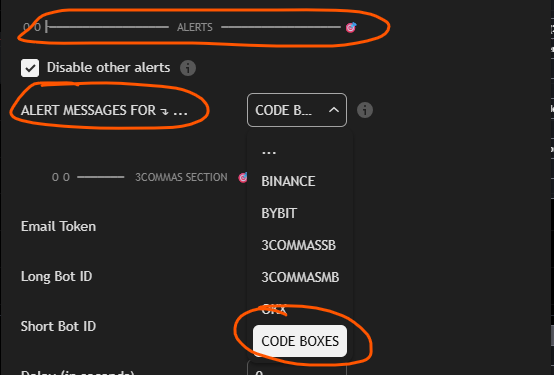
Then go to inputs and on the Alerts Section select Code Boxes.
For any of your Long Only Bots do this:
Paste the Open Long Message at the Open Long Box.
Paste the Close Long Message at Close Long Reversal Box, Close Long TP Box, Close Long SL Box.
For any of your Short Only Bots do this:
Paste the Open Short Message at the Open Short Box.
Paste the Close Long Message at Close Short Reversal Box, Close Short TP Box, Close Short SL Box.
Then go back to your chart and right click anywhere on the Strategy to create an alert.
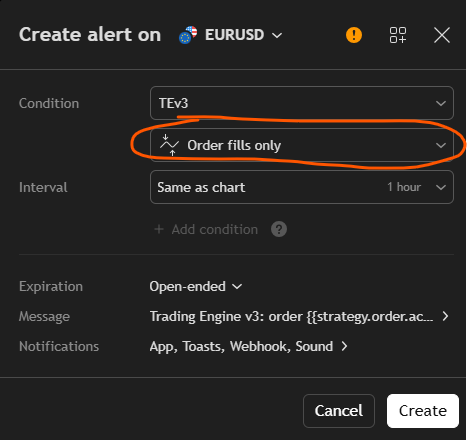
In the Condition Field select the Orders Fills Only option.
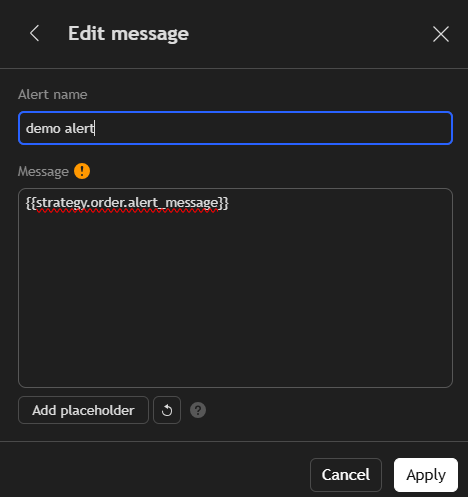
In the message section replace the Trading View message with this
{{strategy.order.alert_message}}
And just select a name for your alert.
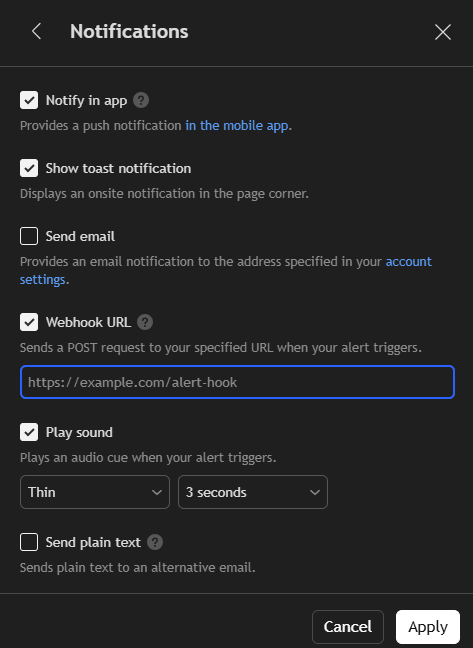
Last step before you create the alert is to input your webhook. Your webhook must look like this:
https://webhook.yourdomain.com/tradingview
Click on Apply and now you are ready to go to your MT5 Account. Before starting the installation make sure that you turn on algorithmic trading on your MT5 Terminal .
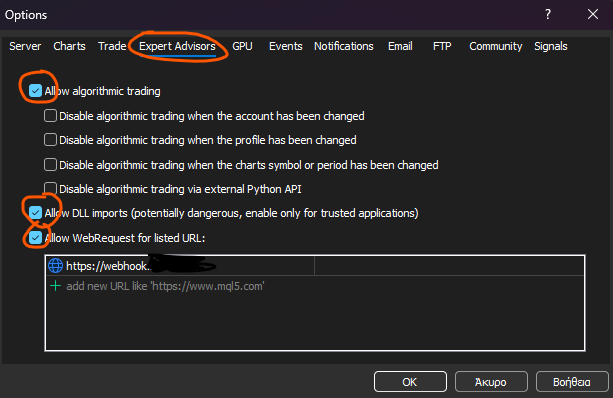
To do that go to Tools/Options/Expert Advisors. Then click on Allow Algorithmic Trading, unselect the next two boxes, also select the Allow DDL Imports and the Allow WebRequest option and in the box below add your domain name.
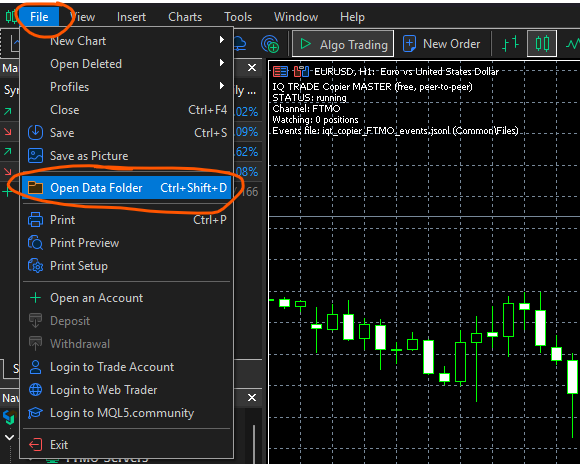
Then click File and then the Open Data Folder option.
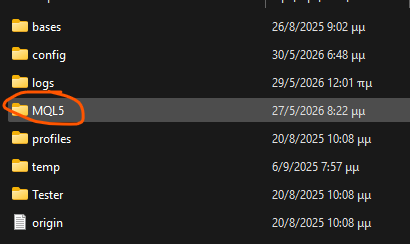
Click and open the MQL5 Folder.
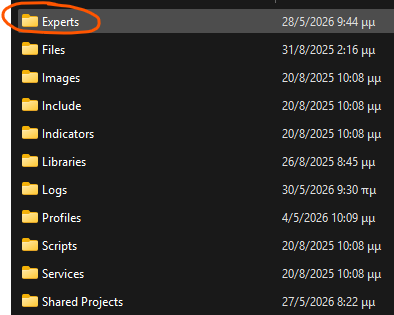
Open the Experts Folder.
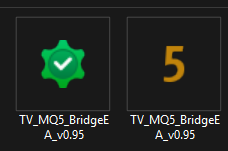
Paste the two files you have downloaded using the links we provided when you acquired the FX Kit.
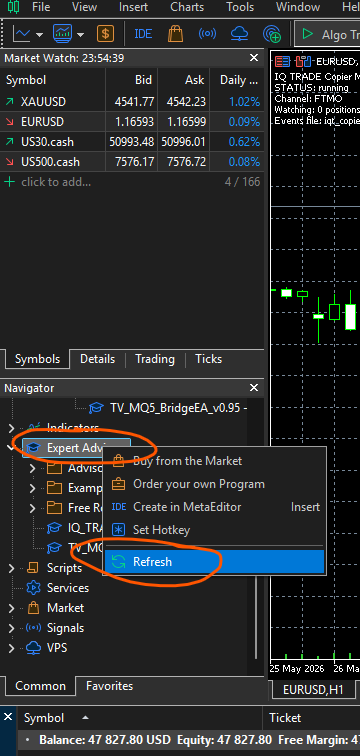
Go back to your MT5 Terminal scroll down to the Experts Advisor section, right click there and click on the refresh option.
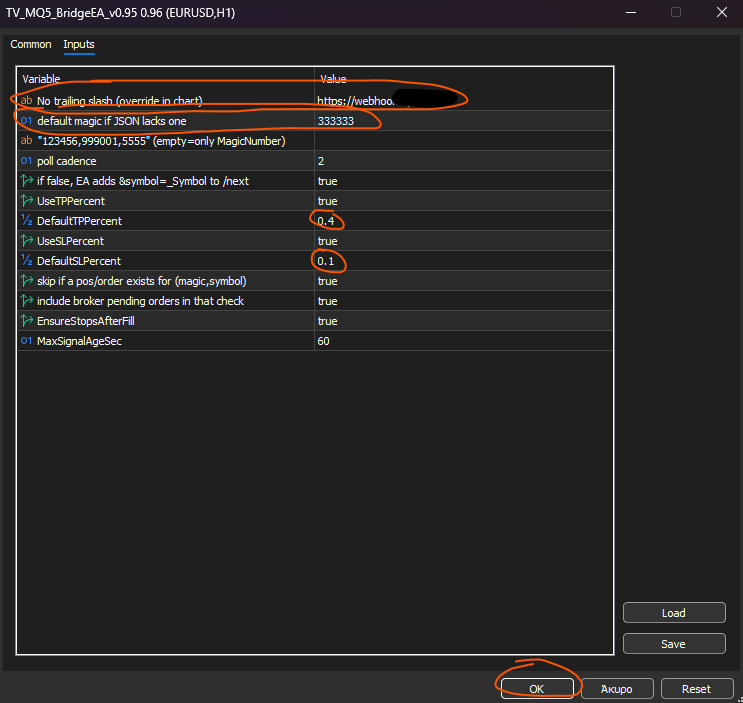
Open a new chart (right click on a symbol ex EURUSD and select Chart Window) and drag in there the TV MT5 Bridge Expert Advisor. Copy and paste your exact subdomain that you have created (https://yourdomain.com) and your specific bot/strategy magic number. Also set your TP and SL so MT5 locks them automatically. By this way you have a double safety in case a trading view alert TP/SL Alert fails.
This is it. You have successfully set up your Trading View to MetaTrader 5 Strategy automation.